Faculty of Consumer Sciences

How to Register

Follow the steps below to complete your online registration successfully. The guide takes you through the registration process from entering your student details to confirming your enrolment.

Before You Register

Make sure you are ready

Have the information you need before beginning the online registration process.

Have your details ready

  • Your student number
  • Your registration PIN
  • Your programme and semester information
  • The courses you are expected to register for

Check your courses first

Before registering, check the applicable course list for your programme and make sure you know which courses you are expected to take.

Important: Check your courses carefully

If a course that you expect to register for is missing from the registration portal, STOP REGISTRATION and contact the Faculty Administrator for assistance.

Online Registration

Step-by-step registration guide

Follow each step carefully and review your information before continuing.

1

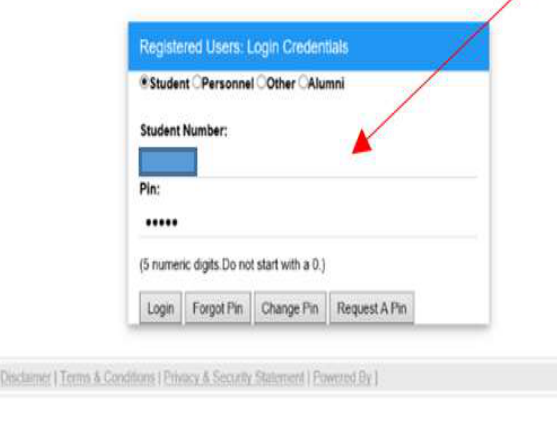
Enter your Student Number and PIN

Enter your student number and registration PIN in the appropriate fields on the registration screen.

  • Enter your correct student number.
  • Enter your registration PIN.
  • Check that the information is correct before proceeding.
Next: Continue to registration
Online registration screen showing student number and PIN fields
Enter your student number and PIN
2

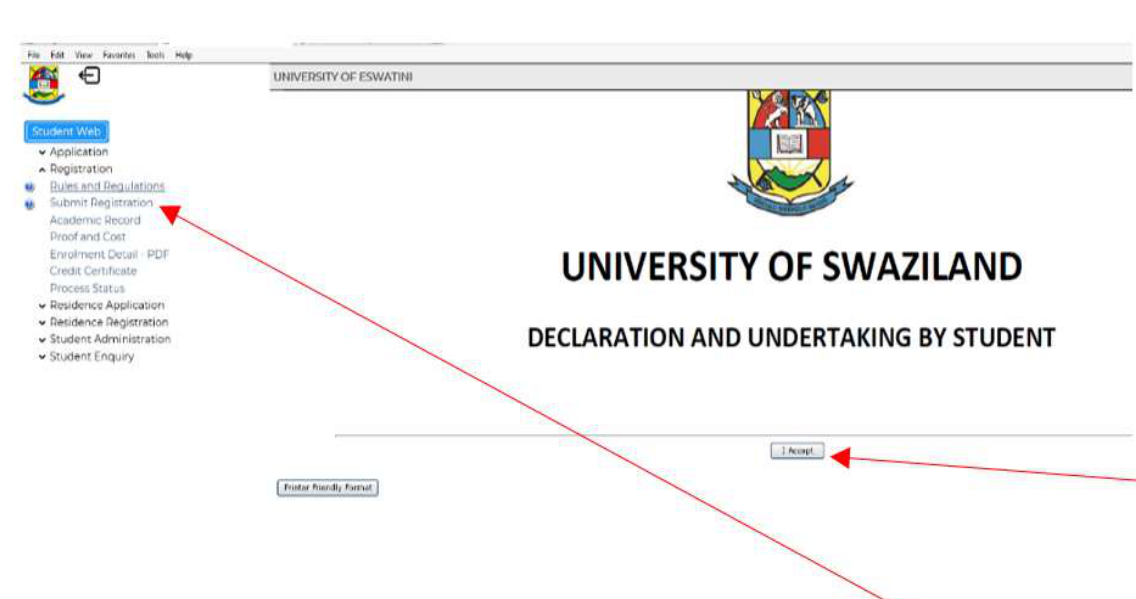
Read and accept the Rules and Regulations

If this is your first registration, you will be required to read the registration Rules and Regulations.

  • Read the Rules and Regulations carefully.
  • Confirm that you accept the terms.
  • Select the option to accept and submit your registration.
Next: Submit Registration
Registration Rules and Regulations screen
Read and accept the registration rules
3

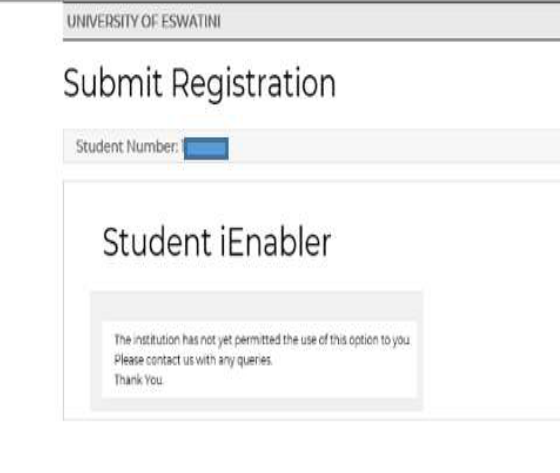
Submit your registration

Proceed with the registration submission through the Student Enabler.

  • Select the appropriate registration option.
  • Follow the instructions displayed by the system.
  • If the system directs you to the Admissions Office, follow that instruction.
Next: Verify your admission information
Student Enabler registration submission screen
Submit your registration through the Student Enabler
4

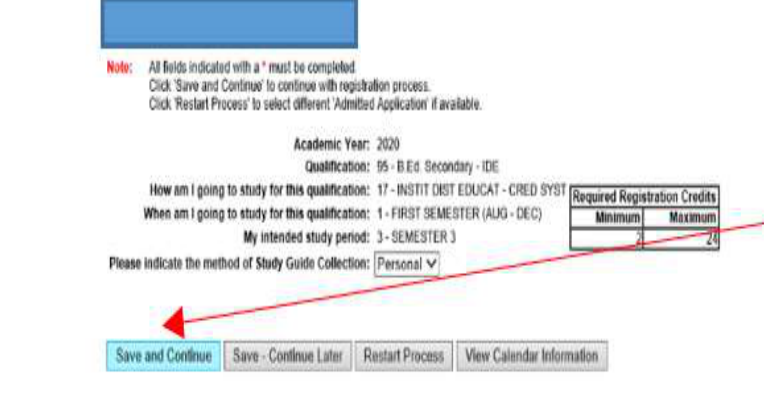
Verify your admission information

Once the admitted student screen appears, carefully check the admission information displayed.

  • Check your student information.
  • Confirm that the programme information is correct.
  • Select Save and Continue when the information is correct.
Next: Select your courses
Admitted student information screen
Check your admission information
5

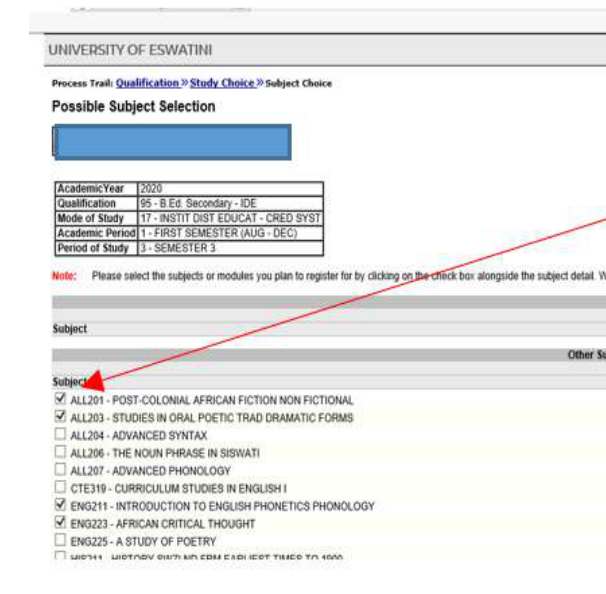
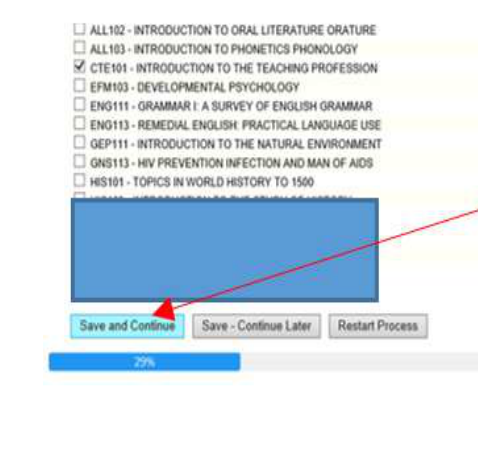
Select your courses

Select the courses you need to register for the applicable semester.

  • Select the appropriate semester courses.
  • Make sure the courses correspond with your programme course list.
  • Stay within the applicable credit limit.
Next: Save and Continue
Subject selection screen showing courses
Select the courses for your semester
6

Save and Continue

After selecting your courses, review your selections before continuing.

  • Check that all required courses have been selected.
  • Make sure there are no incorrect selections.
  • Select Save and Continue.
Next: Review your registration details
Save and Continue registration screen
Review your selections and continue
7

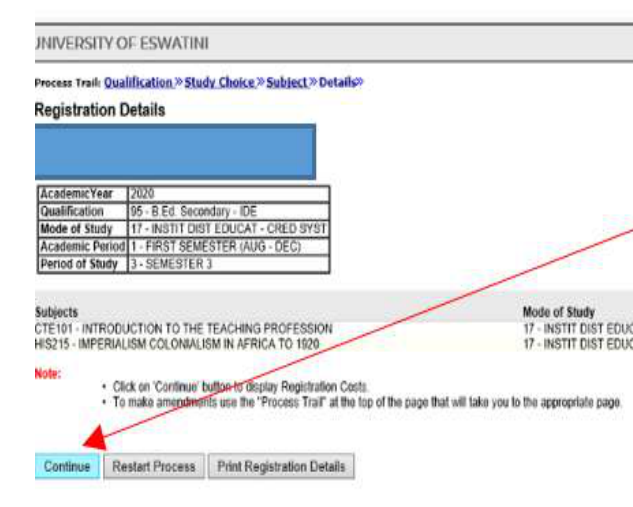
Review your Registration Details

The Registration Details screen displays the courses you have registered for.

  • Review the list of registered courses.
  • Check that the courses are correct.
  • Select Continue when you are satisfied with the details.
Next: View registration cost
Registration Details screen
Review your registered courses
8

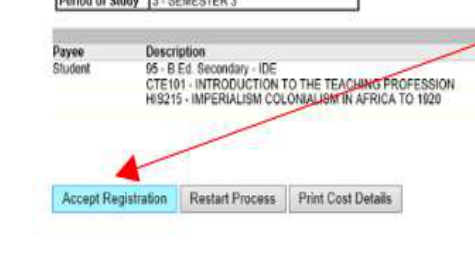
Review the Registration Cost

The Registration Cost screen shows the total enrolment cost associated with your registration.

  • Review the amount displayed.
  • Make sure the registration information is correct.
  • Select Accept Registration to proceed.
Next: Acknowledge the registration message
Registration Cost screen
Review the registration cost
9

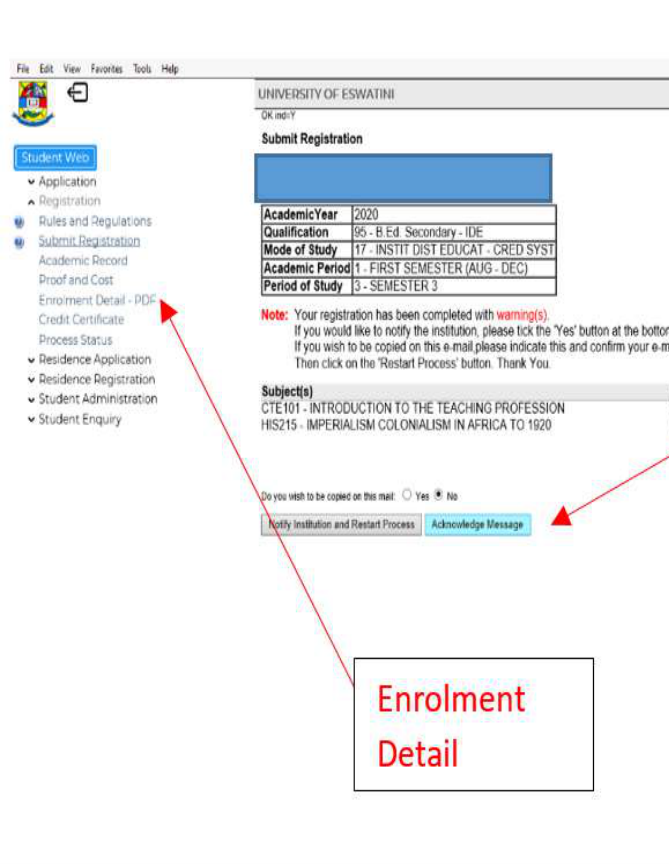
Acknowledge the Registration Message

After accepting registration, the system will display an acknowledgement message.

  • Read the message displayed.
  • Print your Enrolment Detail.
  • Keep the enrolment document safely for your records and any further registration requirements.
Next: Check your Enrolment Detail
Registration acknowledgement and Enrolment Detail screen
Acknowledge the message and print your Enrolment Detail
10

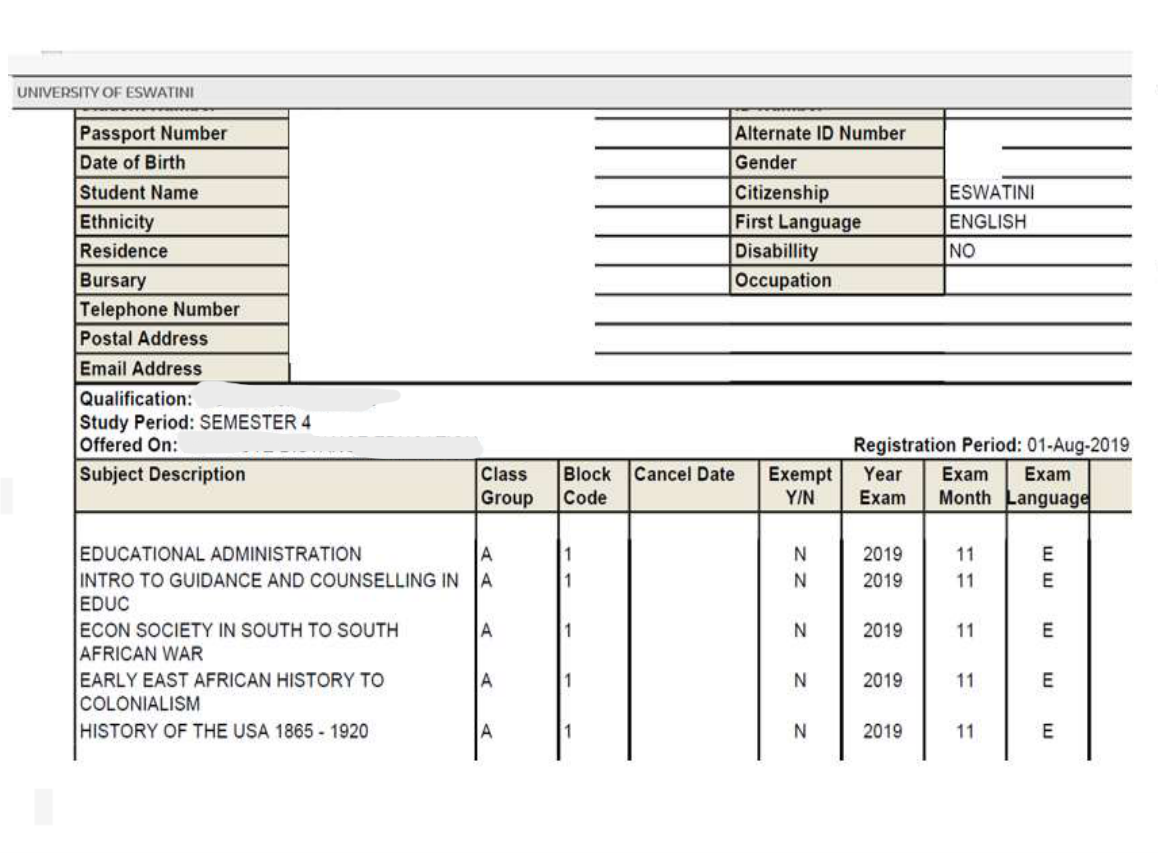
Check your Enrolment Detail

Your Enrolment Detail should display the courses you have successfully registered for the semester.

  • Confirm that your registered courses are shown.
  • Check that the information is correct.
  • Keep your Enrolment Detail for your records.
Registration complete
Enrolment Detail showing registered courses
Confirm the courses shown on your Enrolment Detail

Registration complete

Before leaving the registration process, make sure that you have completed the necessary steps and retained your registration information.

  • Check that your courses are correctly reflected.
  • Keep your Enrolment Detail safely.
  • Do not lose your registration PIN.
  • If there is an error or a course is missing, contact the Faculty Administrator.

⚠ STOP — Do Not Continue If You Have a Problem

Do not simply select another course or continue with an incorrect registration. Seek assistance when the registration system does not match your programme requirements.

A required course is missing Check the official programme course list. If the course should be available but is missing from the portal, contact the Faculty Administrator.
You cannot register for a course Check the prerequisite requirements and your academic results.
You have a registration/fees problem Contact the relevant University office for assistance rather than repeatedly attempting registration.
You are on a special academic status Students on Academic Warning, Probation, Fail & Repeat or other special statuses should follow the applicable registration procedure/form.
You need to change your courses Follow the applicable Add/Drop or Change of Courses procedure.
Your information is incorrect Do not proceed until the problem has been clarified with the appropriate office.

Registration Complete!

Congratulations on your successful registration.

Make sure you have obtained and checked your Enrolment Detail.

Remember: Do not lose your PIN.
© 2026 - UNESWA | FACULTY OF CONSUMER SCIENCES